
Notion Custom Agents Explained
Once returned from grocery shopping and having organized the kitchen, Ryan sat at his desk and opened the laptop. During the time he was outside, what he often refers to as his “ai team” had parsed through his inbox, replied to some emails, and generated action items for more complicated requests that required his analysis. Pleased by the outcome, he began to analyze the ai reports and continued his work. When queried about his thoughts on this new way of working, Ryan mentions time and cost savings, as well as the gains in effectiveness at his work, because he can focus on the most high-impact action items on his list.
While Ryan is a fictional character (drawn from personal observation and experience working with many CEOs), the narrative is one rooted in the current reality of tech and ai tools evolution (McKinsey, 2025). This is the core premise behind Notion AI Custom Agents — semi-autonomous AIs that can connect to any of your tools (plus all the data you store in Notion) and conduct work. Not a chat-based LLM (large language model), but an agentic one (one that can take action across tools as a user).
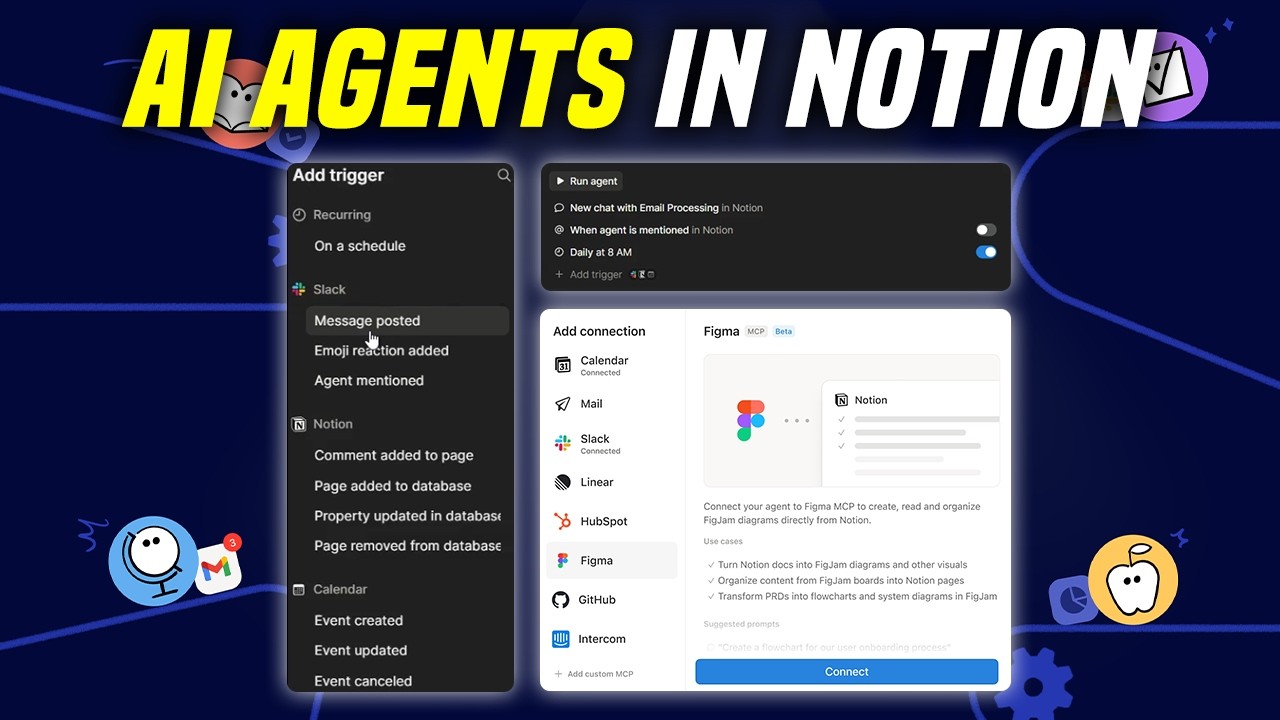
Notion AI Custom Agents are AI-based automated workflows that run by themselves on a schedule, when mentioned, via chat, or when triggered by specific actions in third-party tools (Slack, Mail, Calendar, and more). They consume Notion credits. Custom because they are customizable to your and your team’s needs; Agents because they can take actions across your Notion workspace and connected third-party tools, if you allow so. This adds an automation layer to your Notion workspace and work life.
Custom Agents can make edits across the Notion workspace, connect with third-party tools via their MCP (Model Context Protocol, a standardized protocol for automated AI interactions with software tools), and use context from any native and third-party connections (e.g., Google Drive, GitHub, Slack, and any other tool that exposes an MCP server).
If you use Notion with your team, you can share custom agents across the whole team, only some people, or keep it private. Custom agents respect user permission levels set across the workspace and account for all the context you share with them. They are an add-on for the Business and Enterprise plans and consume credits (consumption depends on task complexity and can be monitored at the workspace level). For pricing info about custom agents, see Notion pricing.
Use Cases
Say you want to automate a daily report on your or your team’s activities into Slack, or as a dedicated Notion page created daily. You can create a Custom Agent that does that every day at 5 PM. Same for a weekly report. Or you wish to get a daily report in the morning with the top 3 priorities that need your focus for the day, also considering all the emails received overnight. You can create a Custom Agent for that.
There needs to be an underlying system in Notion or connected third-party tools with the data you need. Custom Agents don’t magically tell you what you did or will do by reading your mind. The underlying system and the precision of your instructions will determine the quality of the output. The system is the set of connected data sources, pages, and documentation within your Notion workspace and other connected tools. The simpler and clearer a data structure, the easier it is to work with it, both for humans and artificial intelligence.
The precision of your instructions refers to the clarity of your writing in expressing the desired outcome and output. It often requires multiple iterations of writing as you test the ai output, determine its quality against your specs, and adjust the instructions accordingly. This is a generally-applicable principle in AI and life: be comprehensive, explicit, and ask for what you want, and you shall receive it. Play overt games instead of covert ones.
There are refinements needed to make Custom Agents work well and meet your expectations. Do not expect to effortlessly spend a few minutes setting up an AI Agent and everything to work, at least at this stage. Iterations are important and a key part of the game of building something worth using. Be patient and accept short-term effort for longer-term benefits, as it is often the case with many worthy pursuits. There is a clear feedback mechanism in building a custom agent (i.e., the quality of the ai output compared to your expectations), which can make the process of iterations productive and enjoyable.
Beyond the practical applications, agents raise a deeper question about how we relate to our work.
How Knowledge Work Changes
The interesting thing about ai agents is that they represent a new paradigm in knowledge work. Cal Newport defines knowledge work as 'the economic activity in which knowledge is transformed into an artifact with market value through the application of cognitive effort' (Newport, 2024). AI agents are shifting both the methods and the conception of this work. When some of your responsibilities can be automated via ai agents that are always-on and follow your requests precisely, what is the cost of continuing to do those responsibilities by yourself instead of focusing your energy on something with higher leverage?
Logically, this makes sense — outsourcing some tasks to ai agents in order to free up time in favor of high-impact activities appears a no-brainer. Practically, reality is nuanced. There are emotions involved, and ingrained concepts about what work is and what it “should” be that permeate our society. Therefore, we often cling to our profession because it is a source of identity, because it provides money to pay the bills, because this is all we have done and the idea of doing something else feels overwhelmingly ambitious, because what would my parents think, and many more reasons (Skorikov & Vondracek, 2011).
Change always happens regardless of our identification with the past and present conditions, though. This can be frightening and liberating at the same time, upon further inspection. What if ai agents open up new possibilities instead of closing them down? What if I can better understand this new technology and figure out a way to productively integrate it into the way I operate daily?
Mindsets drive outcomes in a manner that’s more disproportionate than you may think, because they shape your beliefs and actions at all times (Dweck & Yeager, 2019). Analyzing an innovation with curiosity and openness appears to be a key element of ongoing success and well-being, as defined by an overall sensation of peace and enjoyment. Avoidance very often causes the compounding of the thing you avoid. That’s why, for example, one of the most effective ways to resolve phobias is the progressive exposure to the object of fear under controlled conditions, until the phobia diminishes and vanishes (American Psychological Association).
This doesn’t imply that you “should” use ai agents or forever be dead. Rather, it implies that a curious and open attitude toward them can be advantageous for you to better understand whether you wish to use them, wait, discard them, or whatever other option you imagine. Then the choice is made by you rather than for you by someone else, which likely creates resentment and bitterness.
To a significant degree, the tech industry and society are making this choice for us. Look at how ubiquitous ai has become in software, and how media outlets report about ai. The stories we tell ourselves shape the reality we live, and inevitably so at the societal level.
By the same token, when everyone’s staring at something, it means there is a large opportunity somewhere else too. You don’t have to follow the herd and suddenly be an ai supporter arguing for its incredible benefits all over social media. Rather, you can choose to disengage and find opportunities in a different or parallel field of research or practice that is still emerging and gaining prominence (e.g., in-person experiences, human privacy, human connections, and more).
The way you work and conceptualize your work can change into something new with ai agents. From offloading non-important tasks to enhancing the quality of your work and your systems, this can be your playground for reinvention and innovation, until the next thing comes, and then the next one, and the next one…
Reference
Features Overview
Watch the video for an in-depth visual overview.
-
The sidebar section as access point. If Custom Agents are included in your plan, you can create and access them quickly via the dedicated section on the left sidebar. You can place the “Agents” section anywhere on the left sidebar via drag and drop, as you can do with any sidebar section. You can create a new Custom Agent via the dedicated “+” button on the right-hand side of the section title, as well as define how many custom agents you want to display on the sidebar via the three-dot menu.
-
Creating a custom agent. You can set the agent name, description, icon, and cover image. Then navigate to the “Settings” tab to customize the agent with web search restrictions, triggers, instructions, connected tools, and the chosen AI model (optional). You can start from scratch, let the AI-cobuilder help you set up the agent, or use a starter template. You then configure the custom agent with all the options explained below.
-
Triggers. Custom agents start their tasks when they are triggered to do so. A custom agent can have as many triggers as you like. There are three types of triggers available for custom agents:
-
When you chat with the agent: each agent has a chat interface you can use to trigger and interact with the agent at any time, like you are used to doing with the popular LLMs (ChatGPT, Claude, etc.).
-
On a schedule: the custom agent runs regularly at the specified schedule (e.g., every day at 8 AM; every Sunday at 6 pm, etc.). This trigger is useful for automations you would like to happen regularly (e.g., daily report generation, weekly activities summary, etc.).
-
When agent is mentioned: whenever you mention the agent (you can mention an agent like any other user in Notion by typing “@agent_name” (e.g., ) on any page, person property, or comment section within a page.
-
App triggers: whenever a specific event happens in Notion, Notion Mail, Notion Calendar, Slack (and more), the agent is triggered. You can think of these as webhook-like triggers that start the custom agent immediately after (a few seconds after) the specific event occurs in the app of choice. For example, selecting the Notion Mail “new email received” trigger starts the custom agent immediately upon new emails. The custom agent then runs following its instructions. For the third-party tools (Notion Mail, Slack, etc.) triggers to work, you must connect them to your Notion workspace. You can do so via “Settings” > “Notion AI” > “AI Connectors” (this may change in the future, as Notion sometimes edits the settings menu, but the concept remains — look for “Connections” or “Notion AI” settings).
-
-
Instructions. Instructions tell the custom agent what to do. What is the task that must be accomplished? Focus more on the “what to do” (desired outcome) and less on the “how to do it” (the process to achieve the outcome). Unless you want to provide the exact steps to follow for the agent to “be” more deterministic, which is ok. Use examples whenever possible to provide standards. Instructions can include any context from the Notion workspace, since they are a Notion page where you can use all the available commands in Notion. You can mention pages, create linked data source views, etc. You can use Notion AI Agent (the sidebar chat) to iterate on the instructions and make them as clear and well-pointed with regard to the desired outcome as possible.
*NOTE: Linking to Notion pages in the Instructions doesn’t automatically add them to the connected Tools and Access.
-
Tools & access. In this section, you will define the tools available to the custom agent. In ai agents, tools are used to achieve the desired outcome. In the same way someone in your marketing team may draft campaign ideas (the desired outcome) by doing web research (tool 1), reading up on the latest marketing trends (tool 2), and analyzing past data from your previous campaigns (tool 3), ai agents need tools to do their job.
The first tool you can enable is web access. This allows the custom agent to search the web, similar to how you would do a Google search to find out information about something you’re working on. If web access is enabled, you can restrict access to specific web domains or leave web access unrestricted. Restricting web domain access is useful for use cases where the agent only needs to find data from a few websites (e.g., your website, your competitors’ websites) or if you want to minimize security threats.
Secondly, you can define the custom agent’s access to your Notion workspace. Just like you would define access for a Notion user. You can provide view-only, commenting, or editing access to Notion custom agents on any Notion page/database in your workspace. It is best to share only the relevant pages/databases with custom agents, rather than the whole workspace, in order to keep the context focused and relevant with regard to the agent’s goal (signal), instead of consisting of lots of noise.
Finally, you can add Connections. These are the MCP servers of third-party tools (and also Notion Mail and Calendar) that you wish the custom agent to have access to during its runs. For example, in the marketing campaign brainstorming example above, you could connect the Hubspot MCP to provide access to your CRM and sales data for analysis/creation purposes, and your Google Analytics MCP for specific data analysis on your past campaign performances. To connect to a custom MCP server, you need to search its official documentation to find the server URL and the authentication method. Notion custom agents MCP connections support Oauth, Bearer Token, Basic, and API Key authorization methods. When you connect an MCP server, you will select which MCP tools (actions available in the MCP server) are enabled, which ones can run automatically, and which ones require user consent before running. You can turn off MCP connections via the dedicated setting (available under Settings > Notion AI > AI Connectors).

-
Model. You can leave the default model (Auto) or select a specific LLM for the custom agent (available options include the latest models of OpenAI/ChatGPT, Claude, and Gemini). So far, I have found the Claude (Anthropic) models to be the best performing.
-
Advanced. Here, you can set external URLs that the agent can always scrape without your consent. That’s because agents will sometimes ask for your permission before scraping external URLs. If you set your website/other URLs you know are safe and needed, you can add them here to ensure the agent doesn’t request your permission.
-
Recent Activity. Below the agent chat, you can find its recent activity, which can be filtered by success/failure, and exported as a CSV.
-
Chat. This is where you can chat with the custom agent. You can add context to the chat in the form of Notion page/databases mentions and file uploads. It is possible to do other things in the Notion workspace while the agent is performing actions in a chat. You can also have multiple chats running at the same time, across different agents or the same one.
Custom Agents Sharing/Permissions
If you use Notion with your team, you may want some custom agents to be accessible to multiple team members, and others to remain private to you. The sharing settings of custom agents follow the same sharing principles applicable across the whole Notion workspace.
To share a custom agent:
- Open the Custom Agent page.
- Click
Share** **on the top right - Add people, groups, or the entire workspace.
When shared, custom agents appear in the sidebar under the** **Agents section, in search results, and in any workspace area that lists or references agents. You can give other people one of these access levels to Notion custom agents:
-
Full access
-
Configure instructions, triggers, access, and models.
-
View and manage activity logs.
-
Run and interact with the agent.
-
-
Can edit
-
Modify instructions and configuration.
-
Review activity.
-
-
Can view and interact
-
Run the agent and chat with it.
-
View the Settings page (Triggers, Instructions, Tools & Access) in read-only mode.
-
Cannot edit or share.
-
Users without access may still trigger or interact with agents configured to respond to events like Slack messages in accessible channels.
You can also manage custom agents (with limitations if your Notion workspace is not Enterprise) on the dedicated “Agents” tab within “Settings” > “Notion AI”. Here, you can view and manage all custom agents in the Notion workspace, with the ability to filter by specific parameters (e.g., status, integrations used, created by, and more).
FAQs
Do Notion custom agents replace external automation tools (make/n8n/zapier, etc.)?
It depends. For building AI Agents, they could. Because you can connect any external tool that has an MCP server in a Notion custom agent. For building reliable API-based automations, they don’t. Because custom agents are not a classic automation tool, but rather an AI-agent-building tool - biased toward the use of Notion for data storage and context. In addition, there are currently no scalable developer-friendly settings available in Notion custom agents (centralized history log, troubleshooting, run analytics, etc.), which makes them likely unsuitable at scale.
Is there a version history for custom agents?
Yes, version history is accessible via the dedicated icon at the top right corner of a custom agent’s Settings. You can restore previous versions from here. Snapshots are taken every time you make a change to the custom agent.
How does Notion protect against prompt injection and security threats?
Read the details here.
Want to build your connected workspace with custom agents? Submit your interest here.