
How to connect investments and financial data in Coda (Finta Pack)
Since your financial data might be spread across multiple accounts with one or multiple banks, having a centralized view of your financial situation can be challenging. There are some out-of-the-box software solutions that help you visualize your finances in one place, particularly if you are in the US (e.g., Mint, YNAB).
These are great tools if you wish to adapt to their environment and accept the lack of customization. If you enjoy building your own systems instead, then using Finta in a Coda doc can be a great option for you, because of the advanced customization you can build within your doc, including charts, hourly sync, filtered views of your financial data, as well as connections with third-party tools via APIs.
Centralizing your financial data in Coda is suitable for individuals who want to see all their data in one place with the ability to make the interface as simple or complex as desired, as well as family offices managing multiple clients and wanting a centralized view of cash flow and investments, maybe as part of a broader and scalable CRM (Customer Relationships Management) and PMS (Project Management System).
I have used Finta with a few of my clients, and it has worked consistently well so far. That's one of the reasons that compelled me to write this essay. Centralizing financial data is certainly a compelling vision for many of us, whether to oversee our personal wealth or manage a more complex client base.
Want help building your custom CRM/Project Management with centralized finances in Coda? Submit your interest here.
P.S. I also offer a Personal Finance Coda template that includes a scalable structure and helpful dashboards - learn more here.
Requirements
Here are the requirements for centralizing your financial data in Coda via the Finta Coda Pack.
- A Coda account and workspace — any plan works, but only the Team and Enterprise plans have the option to refresh your financial data hourly (the fastest available sync frequency in Coda Packs). All plans include Manual and/or Daily sync. So, if you desire automatic hourly syncs, a Team or Enterprise plan is needed. Otherwise, any Coda plan works.
- A Finta account — a paid plan is required for going live (i.e., fully using the system). You can check the pricing options here and pick the most suitable for you, depending on how many bank connections you need. There is a 7-day free trial by default (as of January 2026), which makes it easy for you to set up and test the service before committing to a paid plan.
Process & Key Concepts
-
Connect Finta — in any Coda doc, you can insert the Finta pack (via the dedicated "Insert" option at the top right corner of the doc). You may start with the default Budget Starter template that comes with the Pack, or connect your Finta account via the pack settings on the right sidebar. This section of the video shows how to connect Finta in Coda.
-
Connect your accounts in Finta — on the Finta app, you will connect all your bank accounts so that you can use their data in the Coda doc. Watch this part of the video to see this in action.
-
Use synced tables — the Finta Coda pack contains synced tables for transactions, accounts, holdings, and more. You can add those synced tables to the doc via drag and drop from the Finta Pack right-side configuration panel. Since these are Coda tables, all the native features apply — you can create views (charts, boards, etc.), apply filters, add columns, sort, group, or use conditional colors.
If you are adding these tables as part of a broader CRM or financial system, you can create relations between tables via dedicated Relation columns. Relations allow data connection and scalable centralization. For example, there is a relation between "Transactions" and "Categories" because each transaction belongs to a category. There is also a relation between "Transactions" and "Accounts" since each account contains multiple transactions over time.
On each table, you can define the sync settings (especially the sync frequency mentioned above) and row limits via the right-side Pack configuration panel.
Customizations
Once the synced tables are done, you can create views and dashboards. A view is a representation of a Coda table in a specific format (e.g., table, cards, calendar, timeline, chart). A dashboard is a page containing views of the data, especially charts and metrics. On a Coda page, you can also add metrics/KPIs by using inline formulas (type "=" on any line in a page to open the formula editor and create the formula).
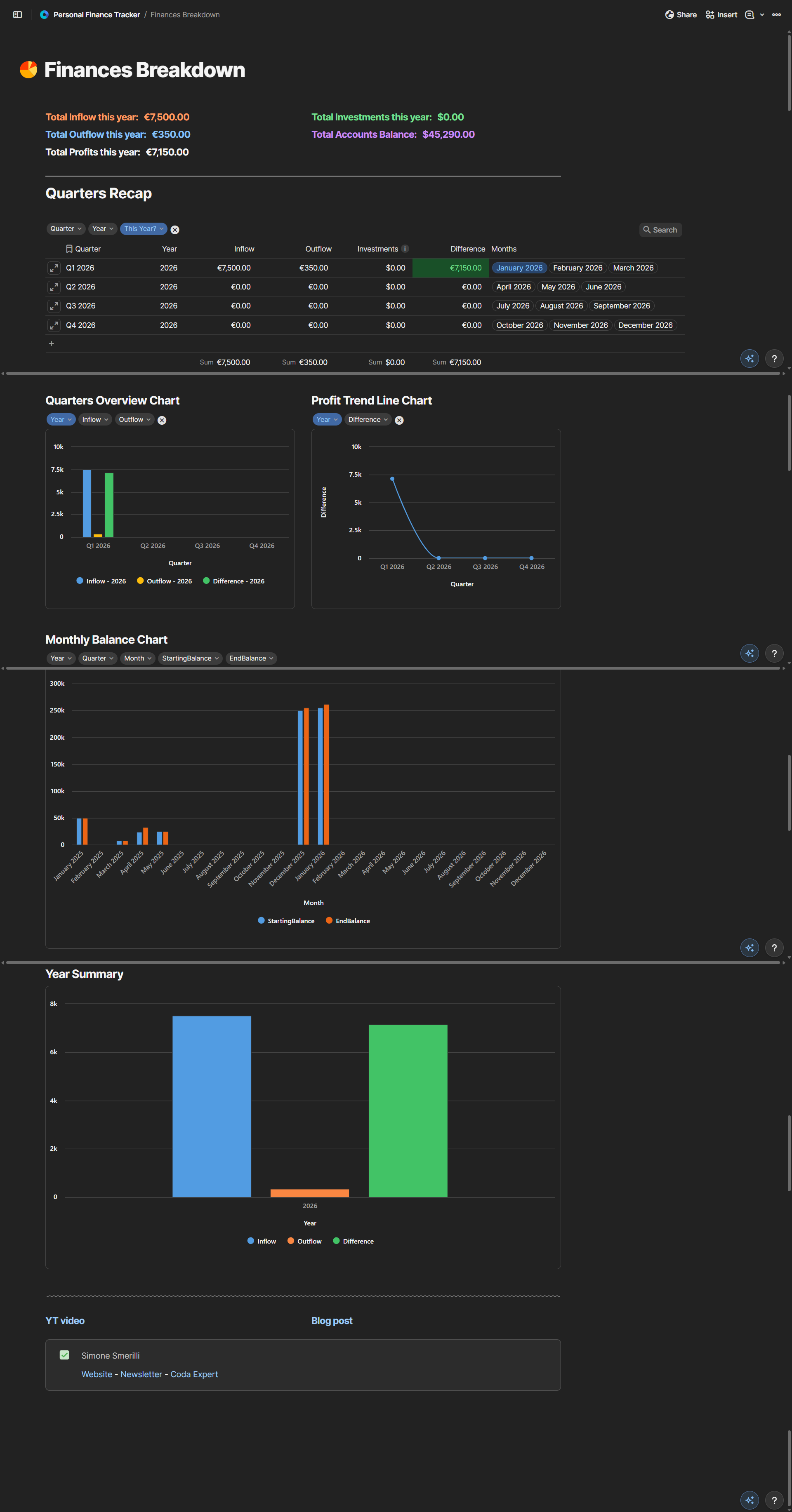
So, for a financial tracker, you may include a bar chart showing income by month, one showing expenses by month, one showing profit by month, a line chart showing your investments by month, a pie chart displaying expenses by category, and so on. Below is an example dashboard from my Personal Finance Coda template. Notice the mix of metrics (at the top), summary views (e.g., Quarters Recap), and charts.
There is a lot of space for customizations (depending on your preference), which makes it fun and potentially more rewarding than an out-of-the-box software, thanks to the "IKEA effect" (i.e., we often value more the things we build ourselves than the ones that come pre-assembled).
Limitations
- There is a limit of 10k rows per synced table (on the Pro, Team, and Enterprise plans — 100 rows max on the free plan). That means there can be a maximum of 10k transactions on the "Transactions" table, max 10k categories on the "Categories" table, and so on. This can be an issue for "Transactions", especially if you wish to retain all transactions from the past and the total number of transactions is greater than 10k. If you need a greater level of scale and no limits, consider a database option such as Supabase or Xano, with an API connection or custom Coda pack to display the data in Coda.
- Non-US users may not find their bank listed among the available options. While many banks are available in Finta through Plaid (the largest financial connector platform worldwide), some non-US banks are not available due to legal regulations or other reasons. Banking is a very restrictive and regulated world, which explains this limitation. So, before adopting this solution fully, it is best that you create a free account on Finta and check whether the bank connections you need are available.
FAQs
What's the total monthly cost?
For an individual with up to 10 bank connections, the total cost is around USD190 per year.
Finta: Standard plan at $70/year or $5.83/month as of January 2026.
Coda: Pro plan at $120/year or $12/month as of January 2026.
What happens if Finta goes out of business? Do I lose all my data?
Yes, as with any cloud software, your data is not fully owned by you, and the risk of the software shutting down or making significant changes is always present and beyond your control.
Can Finta or Coda see my transaction details?
Not really. Like any software vendor, both Finta and Coda can technically access your transaction data, but there are important security measures in place:
Finta uses read-only access through Plaid (a globally established and trusted third-party financial data provider) and does not store your bank login credentials. Your connection is encrypted with bank-level security. Finta's business model relies on your trust, so it has strong incentives to protect your data.
Coda stores the synced financial data in your workspace with enterprise-grade encryption. As with any cloud platform, the data resides on their servers, though it's protected by their security protocols.
So:
- Read-only access (neither service can move money)
- Bank-level encryption for data transmission
- No storage of banking credentials
- Both companies are compliant with data protection standards
You can review their privacy policies: Finta Security; Coda Security
The risk level is similar to other financial tools like Mint or YNAB. If you need maximum privacy, consider self-hosted alternatives, though they require more technical setup.
How much ongoing work is required? Do I need to manually categorize transactions?
Transaction categorization can be automated via Finta - there is a dedicated setting for that. But some transactions may not be correctly categorized. So you will categorize some transactions manually or automate them based on descriptions/accounts via Coda Automations or AI. Besides that, no ongoing work is required unless you wish to further add customizations and tweak the system over time.
Does it handle multiple currencies?
Yes, transactions have an amount (number) and a separate currency field. This is the default data handling of Finta so that multiple currencies are supported.
—
Finally, if you use Finta to manage your clients’ data, you could connect all your client accounts under the same Finta account, or use one Finta account per client for greater data segregation and organization. The former option is cost-effective but can result in more confusion because of the many connections you will create in one Finta account, while the latter is more expensive but cleaner in terms of data organization.