
How to Hide Sensitive Data in Notion Databases (Property Access Rules)
Intro
Collaborative workspaces often need restricted access—different access for different groups or individuals. Not just at a page or database level (see page-level access), but also on specific properties (columns) in a data source*. This can be for various reasons, such as following security regulations, avoiding data leaks or user errors, or simply making the user experience and interface clear.
For example, you track and manage IT tickets in Notion, and you want the requester to access their submitted tickets and be able to edit attachments and notes, view the status, and not be able to see the internal notes from the IT team working on the ticket.
You can have one IT Tickets data source and use property access (paired with page-level access) to implement this use case natively and precisely.
Similarly, you may use Notion Custom Agents to assist with completing your tasks. You want custom agents to have editing access only to a specific set of properties to avoid undesired changes. Property access handles this too, since Custom Agents work like any other user in Notion.
You can watch the video for a practical demonstration.
How to use Notion property access rules
A property in a Notion data source is similar to a column in a spreadsheet. Importantly, a property is of a specific type (for example, date, number, text, relation, or formula). This ensures data stays clean, accurate, and portable across systems if exported.
With property access, you can control who can view and interact with any specific property in each data source. This feature is only available on the Business and Enterprise plans.
There are five levels of property access/restriction, besides the default inherited from the database access:
- No access (can’t see the property at all)
- Can see property (can see the property exists, but can’t see its values)
- Can view (can see the property and its values)
- Can edit content (can edit the values of the property for the items in the data source)
- Can edit (can edit the property values and configuration)
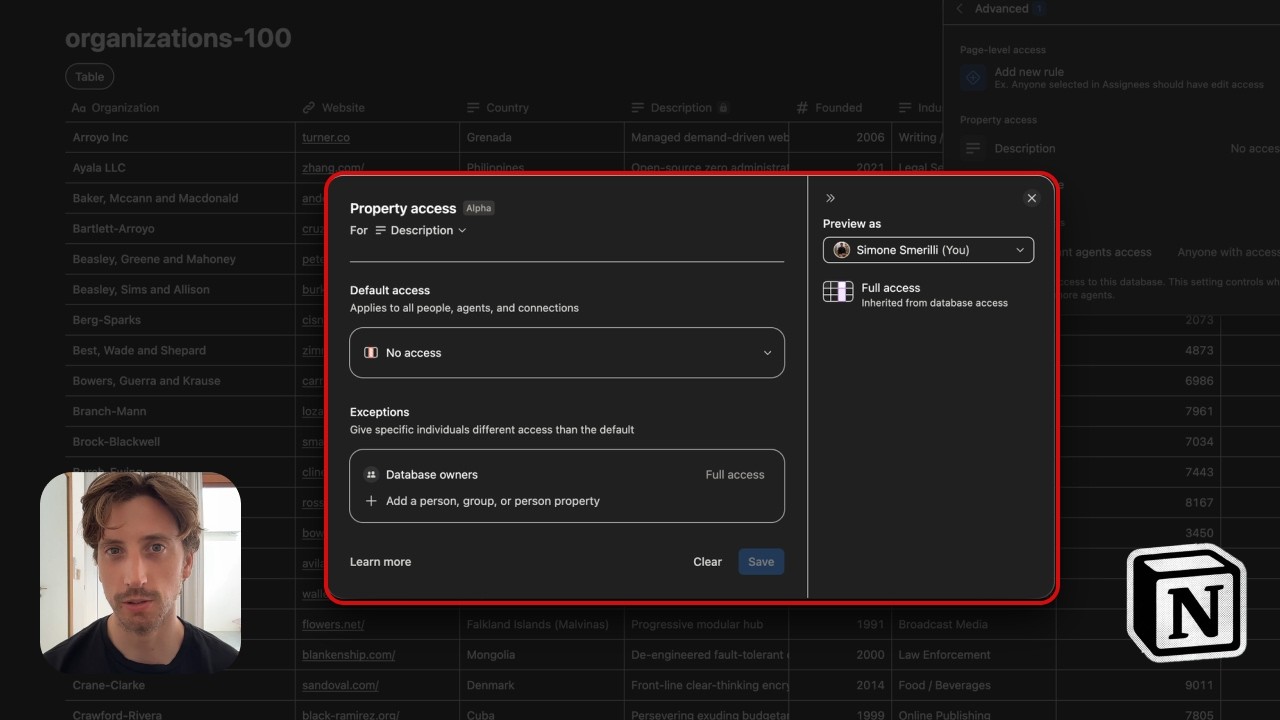
When you click on any property in a data source, there’s a dedicated option to manage access (within the “Edit property” menu). By default, everyone who has access to the data source has default access to all properties within it.
As a caveat, relations and rollups/formulas referencing relations aren’t visible to users who don’t have access to the related data source.
Expand to learn more about what this means
User A has access to two related data sources: Projects and Tasks
The project “Launch a missile” is related to 3 tasks
User A can see both the project “Launch a missile” and its related tasks
—
User B has access to Projects, but not Tasks
User B can see the project “Launch a missile”, but not its related tasks
You can manage property access for specific users or groups of users (which you can view or set in the dedicated workspace settings menu).
You can also preview the perspective of any user before saving changes, so you can check whether you’ve applied the desired property access settings.
Watch the video for a visual walkthrough.
Conclusion
Property-level access management increases the appeal of Notion for medium and large companies: the bigger the organization, the more data isolation and permission options matter.
Paired with all the other features in Notion, property access makes it possible to build a “serious” and scalable workspace for teams of any size, keeping data centralized yet segregated by role - as in the IT tickets example: the requester never sees internal notes, the IT team sees everything, and nobody maintains a second database or third-party workarounds.
*A data source is a table, composed of properties and rows (pages), and organized in a database. A database is a container of data sources (one or more).
Want to build effective systems and mindsets? Submit an enquiry, or browse products