
Notion Calendar: All the Essentials You Need to Know
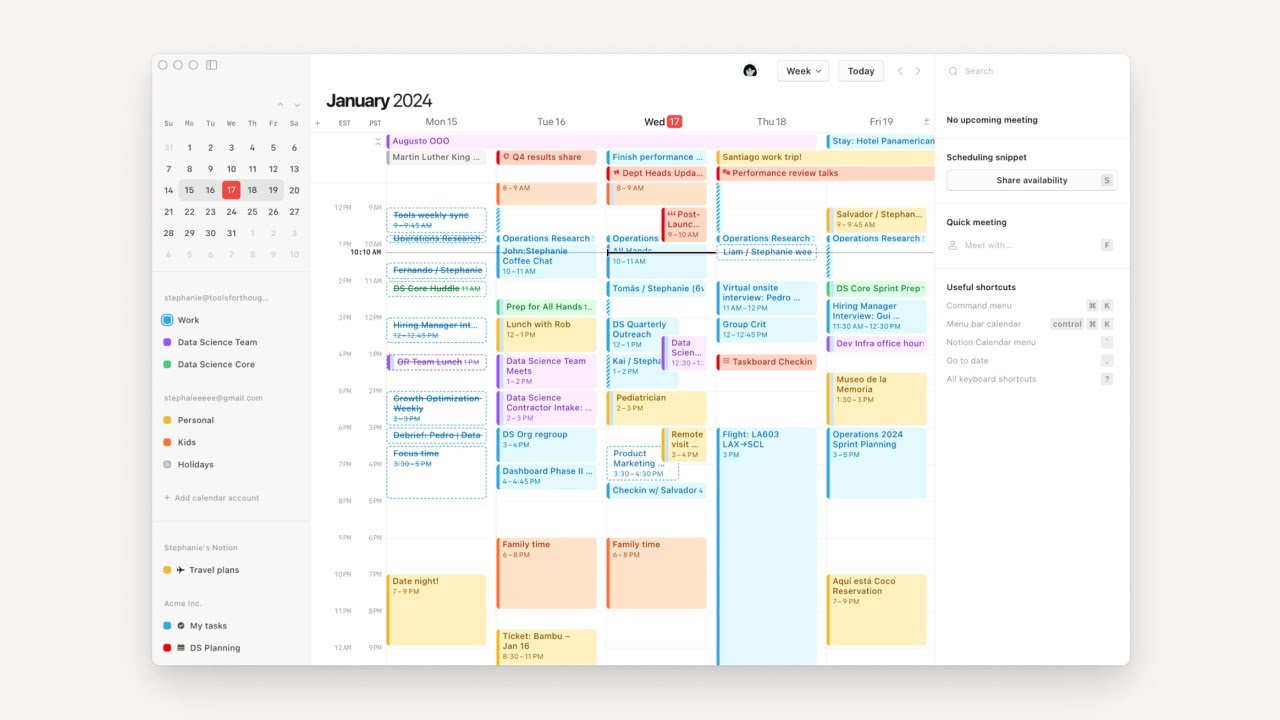
A calendar can be the source of truth for how you conduct your days, weeks, months, years, and decades. It can be the place where you can review your past habits, make time for and track your current habits, and reflect on future ones.
For the average knowledge worker with many possibilities on their plate and a finite amount of time and life, a calendar may feel overwhelming at the mere look of it, or soothing as a mechanism to feel a sense of control over an otherwise hectic existence.
Over time, time blocking and tracking every activity on a calendar may become part of one’s identity, without which the productivity seeker may feel lost and experience heightened anxiety levels. When discovering such reality, it may be too late, and one may get to begin the journey of identity detachment through disciplined non-time-blocking, which may feel very uncomfortable at the beginning.
Yet, a calendar is a staple productivity and life management tool in the arsenal of most knowledge workers. It can be a component of a larger productivity system to organize and track projects, tasks, and every event that happens in one’s professional and personal life.
Other elements of the productivity system may be tracked and managed in Notion, and until now, there has been no clear integration between calendar apps and Notion. Those would only be available to more advanced technical users via the API.
Therefore, the launch of Notion Calendar has expanded the suite of products in the Notion ecosystem, bringing more cohesiveness to productivity systems. You can now effectively integrate your calendar with Notion (only available for Google Calendar accounts as of January 2024), and use Notion Calendar as the only calendar needed for all your activities.
Notion Calendar overview
Notion Calendar was previously called Cron. This was a separate calendar software that was acquired by Notion in 2022. After months of silent developments, Cron was fully rebranded as Notion Calendar and made available to any Notion user (included in the free plan) last week (January 2024).
Notion Calendar could replace any other calendar tool you are using daily, including Google Calendar. But it can only work with Google Calendar, as of January 2024. Indeed, signing up for Notion Calendar requires a Google Calendar account.
This allows you to visualize all the calendars you choose from Google Calendar (for work meetings and other events, for example), alongside which you can also display pages from Notion databases (with a calendar or timeline view) of your choice from one or multiple workspaces.
So, Notion Calendar aims to provide a centralized, exhaustive view of everything happening in your days in one single calendar interconnected with your Notion databases. This further reinforces the core mission of Notion - to remove silos and bring clarity and simplicity into your possibly overwhelming work experience.
How to setup Notion Calendar
When it comes to setting up Notion Calendar and its main features, here are all the most important things worth knowing.
- You can use the Notion Calendar desktop app, mobile app, or use Notion Calendar on the browser.
- You can access Notion Calendar from the bottom of the left sidebar menu in Notion, or from any calendar/timeline database view.
- To sign up or log into Notion Calendar, you need a Google Calendar account. Even if your Google Calendar is empty, you will still need it, since Notion Calendar uses the Google authentication flow.
- Once you sign up to Notion Calendar, or at any time when using the app, you can select all the calendars from Google Calendar whose events you want to display in Notion Calendar, as well as all the database views from Notion you intend to show on the calendar. Before selecting the Notion database, it can be good practice to think of the exact databases you will display in Notion Calendar, and ensure they contain a calendar or timeline view and any appropriate filters (e.g., “assignee contains <me>” for a team tasks database).
- Use one single date property (not separate start/end dates) in Notion to ensure the events show up properly in Notion Calendar since Notion Calendar only uses one date property to define the timing of events in Notion pages.
- You can link Notion pages directly from Notion Calendar on each event. Simply click on the Event, and populate the “Docs and links” property on the right-hand panel (for events from Google Calendar calendars). Or find the “Open page” button on events coming from Notion databases.
- Finally, you can create or update Notion pages directly from the calendar by changing the times or titles, for example. This only works for events that are coming from Notion databases. The edits you make on those events will be reflected in Notion. You can also create new Notion pages directly from Notion Calendar, by creating a new event and selecting the desired Notion database as the target calendar.
The video below shows all of these features and delves into Notion Calendar more in detail.
FAQs and current limitations
Can I delete my Google Calendar account and replace everything with Notion Calendar?
Not currently. Notion Calendar uses your Google Calendar account for signing in. You may not open Google Calendar again and manage all your calendars and events directly in Notion Calendar.
Do my events in Notion Calendar get automatically synced with my Notion database?
It depends on which calendar you create the event. If you create an event on a Google Calendar calendar, the event will not be automatically synced with a Notion database. If you create an event from Notion Calendar on a Notion database, the event will be automatically created in Notion, and you will be able to instantly open the Notion page directly from Notion Calendar.
I use Notion with my team. How can I only see my tasks (and not everyone else’s) in Notion Calendar?
- Create a calendar or timeline view in the Notion database you are using in Notion Calendar
- Add a filter for (e.g., “Assignee”) “contains” “me”. This is a dynamic filter only displaying the data of the user viewing the database.
- Use this database view in Notion Calendar, and you will only see your pages
Is there a limit to the number of Google Calendars or Notion databases that can be integrated with Notion Calendar?
No, there is no limit.
Can I use Notion Calendar with other calendar apps like Apple Calendar or Outlook?
Yes. Learn more on the official docs.
Want to build custom systems that scale? Submit an enquiry.